
How to connect your SendJim to BPro:
-
Start by clicking into the API Integrations page, under the Customize menu.

-
Start by clicking the Register Integration button. You will see a pop-up window for SendJim asking to Allow Access to establish the connection.
-
After clicking Allow Access, the pop-up window will show connected and the pop-up window can be closed.
-
Refresh your page in your browser and you will see SendJim is fully connected.

Setup a new SendJim Template:
-
Start by clicking the Main Page button.

-
The Main Page is split into two sections - SendJim QuickSend and the SendJim Errors Log. To configure a new Quicksend rule/campaign, click the +New QuickSend button.

-
Select your QuickSend - You can select any of the QuickSend campaigns that you have already created within your SendJim account.

Next, you can set the parameters of which BPro customers will funnel into your SendJim QuickSend campaign.
-
Trigger Type: Order Closed - when the BPro job is fully completed and paid (closed status) OR Invoice Created - when you mark line item(s) complete on a job, (which will create an invoice).
-
Type: Client Mailing - This will send to the customers with the closed or complete jobs. Neighbour Mailing - This will send to a select number of neighbours that live near the client with the closed/complete job.
-
Number of Neighbours: Choose how many neighbours you would like to send the mailing to.
-
Minimum Subtotal: This is where you can set a minimum job amount for clients to be eligible to be added to your QuickSend campaign. Ie. they must have a minimum $300 subtotal. This can help you target high-value clients/neighbourhoods.

-
Needs To Include Product Categories: You can define your targets to clients whose jobs Include line items related to specific product/service categories (Optional). Ie. You may want to target clients with closed jobs that include Window Cleaning, Gutter Cleaning, or Pressure Washing (Your QuickSend mailing might be focused on certain service offerings which you want to promote/target).
-
Cannot Include Product Categories: You can choose to targets to Exclude clients whose jobs have line items related to specific product/service categories (Optional). Ie. Exclude clients whose jobs have any Auto Detailing related line items. NOTE: If a client's job has line items from the included list & the excluded list, they will be excluded.
-
Click Apply Changes to save your QuickSend template. QuickSend templates can be edited or delted at any time. Your QuickSend is now LIVE, and any client jobs that meet your template parameters (from that point forward) will feed into your SendJim mailing campaigns.

SendJim Errors Log:
The errors log page will show any potential errors that arise. Errors might include a failure to send because of insufficient SendJim credits, or a campaign was deleted within the SendJim account.

Finish Your CRM Setup Inside SendJim
- This is the last and most important step. Navigate to your Company Settings along the left then select the Billing tab. Once in the Billing tab you'll want to turn on your Auto Replenish. There's a toggle button to turn it on easily.
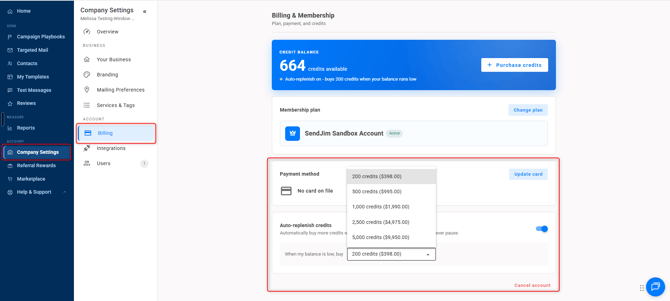
- After that you'll want to go into your Integrations tab and set your Max Monthly Spending.
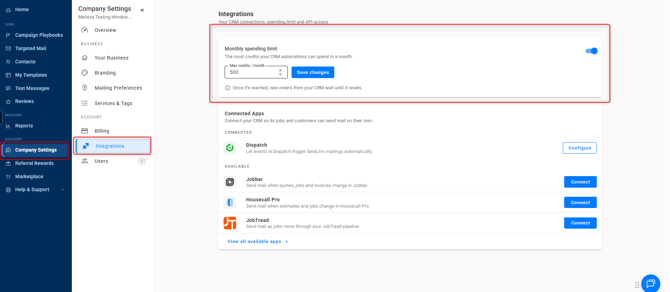
- These numbers are what SendJim will use to give your CRM a budget to spend every month. Once your CRM has reached your Max Monthly Spending limit inside of SendJim for that calendar month, SendJim will send you an email and stop any additional mailings from being triggered until the next calendar month. Or, you can choose to come in and increase your max spend to allow automation to continue.
Questions for the SendJim Team?