
Watch the video below to learn how to:
-
Set up the Integration
-
Create the Action Step
-
Assign the Action Plan to a Contact and see the results in History Notes.
CRM Settings:
- This is the last and most important step. Navigate to your Company Settings along the left then select the Billing tab. Once in the Billing tab you'll want to turn on your Auto Replenish. There's a toggle button to turn it on easily.
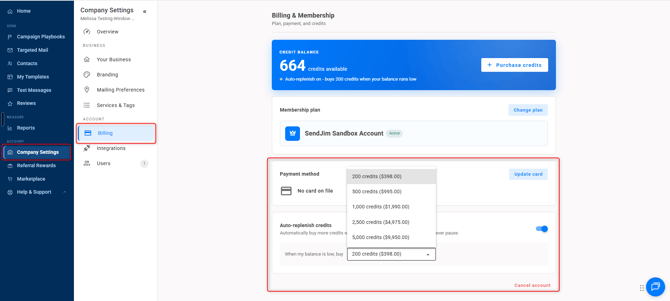
- After that you'll want to go into your Integrations tab and set your Max Monthly Spending.
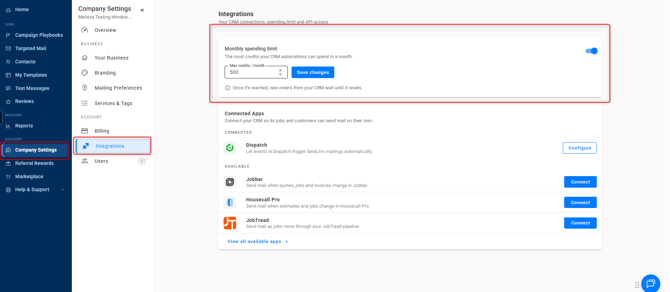
- These numbers are what SendJim will use to give your CRM a budget to spend every month. Once your CRM has reached your Max Monthly Spending limit inside of SendJim for that calendar month, SendJim will send you an email and stop any additional mailings from being triggered until the next calendar month. Or, you can choose to come in and increase your max spend to allow automation to continue.