Having a gift in your follow-up Campaigns are a great way to have your company stand out from competitors! Re Eview the written instructions below to learn how to create and customize your gifts!
View the Full List of SendJim Gifts Here
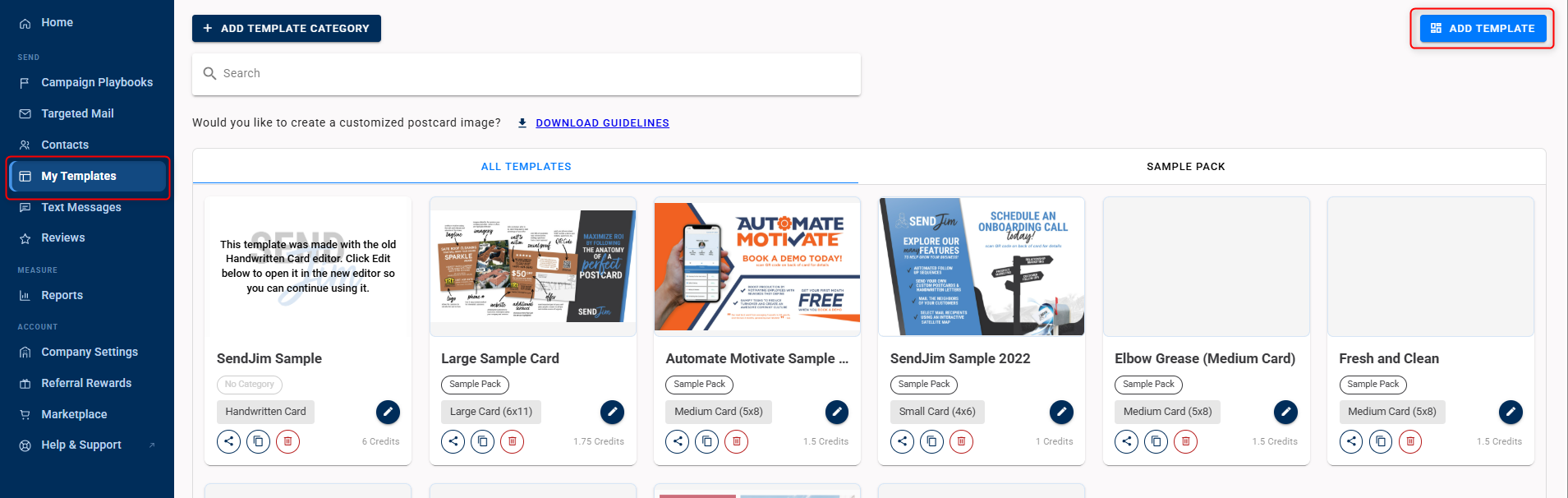
Step 1: On the SendJim Dashboard, click the third option on the left menu "My Templates"
Step 2: At the top right of the page, select "Add Template"
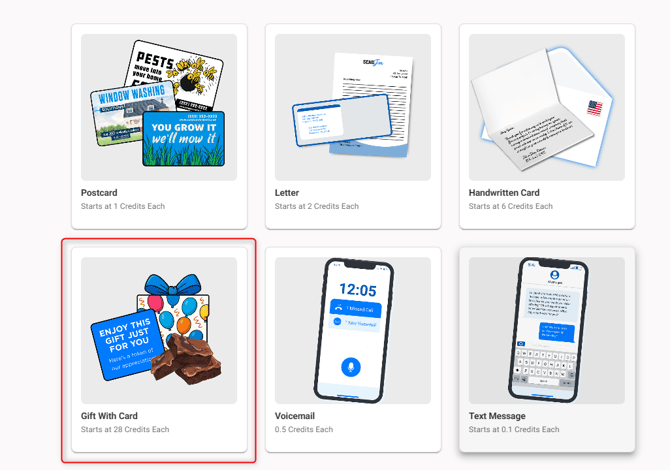
Step 4: Select your Gift Tier from the options
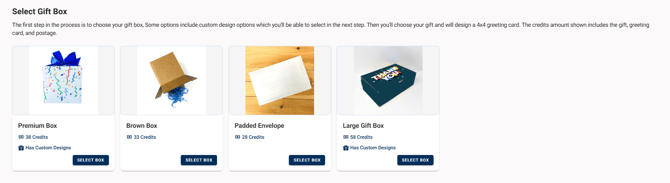
- All gift options include the cost of a gift, shipping, and a customizable 4x4 card that you'll create before saving the gift.
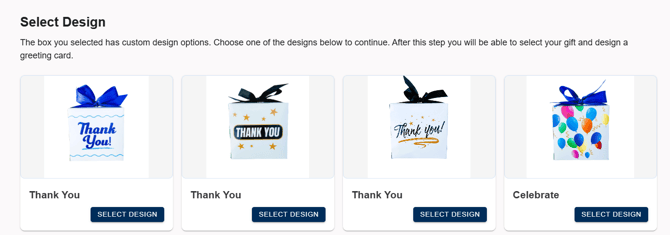
Step 5: Select your gift box design if applicable from the list
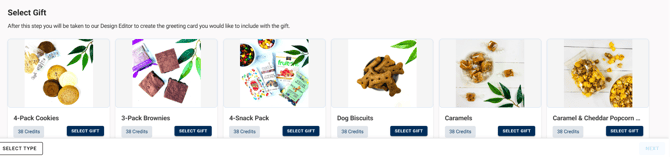
Step 6: Select your gift option from the list
Step 7: Next, you'll choose your 4x4 template
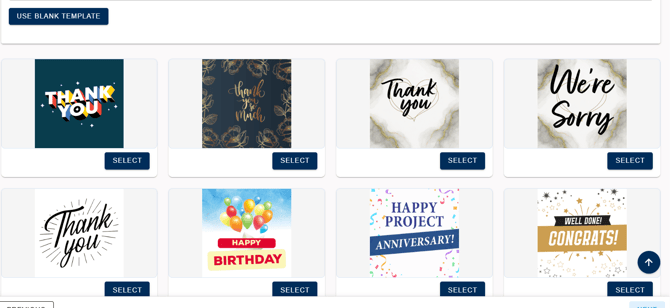
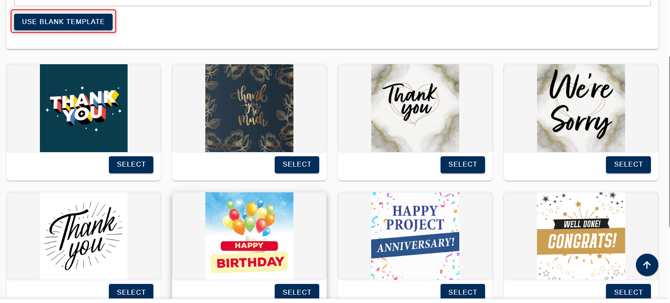
- If you want to start with a blank card, select the "Use Blank Template" button
Step 8: Edit your Template inside the editor.
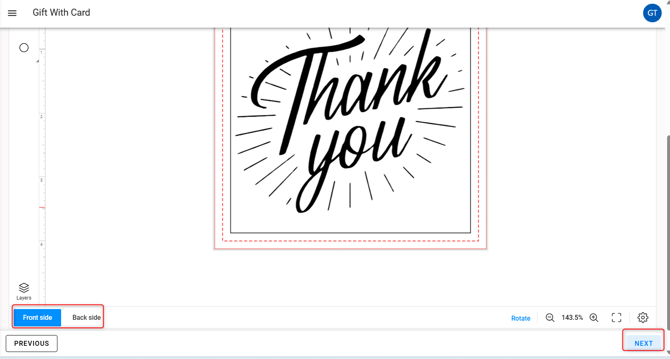
- To edit the text, click on the text box on the design to open the text formatting options at the top of the page.
- To add new elements like text, shapes, QR codes, images, or personalization options (first name macro), please use the left menu.
- To navigate to the back of the card, please click the "Back Side" button at the bottom left of the editor.
- Once you're ready to save, click "Next" in the upper right corner. You can always return to make additional edits.
Step 9: Preview and approve your card design
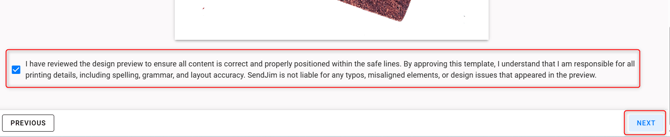
- If you are satisfied with the design, click the checkbox at the bottom of the page and select "Next" in the bottom right.
- If you need to make any edits, click the "Previous" button at the bottom left.
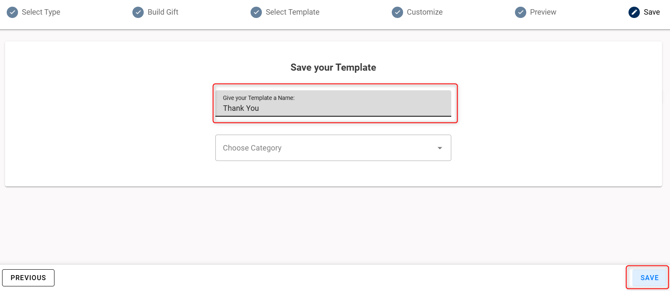
Step 10: Finally, Name and Save your Gift Template