
We are excited to announce a POWERFUL Integration with The Customer Factor.
Follow these steps to make sure your account is properly setup and enjoy 100% automation from inside your CRM.
Step 1: Turning on your CRM settings:
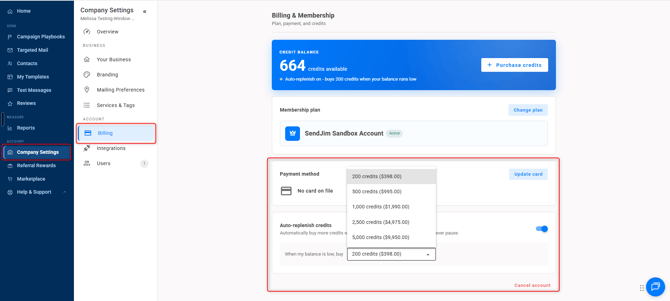
- This is the last and most important step. Navigate to your Company Settings along the left then select the Billing tab. Once in the Billing tab you'll want to turn on your Auto Replenish. There's a toggle button to turn it on easily.
- After that you'll want to go into your Integrations tab and set your Max Monthly Spending.
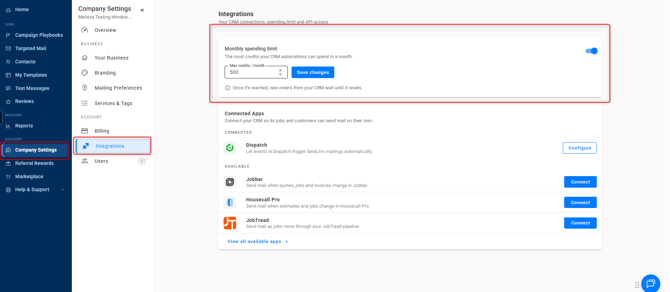
- These numbers are what SendJim will use to give your CRM a budget to spend every month. Once your CRM has reached your Max Monthly Spending limit inside of SendJim for that calendar month, SendJim will send you an email and stop any additional mailings from being triggered until the next calendar month. Or, you can choose to come in and increase your max spend to allow automation to continue.
TIP: MAKE SURE YOU CLICK ""SAVE" IN THE BOTTOM RIGHT AFTER MAKING CHANGES!
STEP 4: Login to your Customer Factor account and go to "General/Setup".
STEP 5: Scroll down the page until you see the "Send Jim" area.
STEP 6: Choose to "Allow Access" to your Send Jim/Radius Bomb account.
STEP 7: Now it is time to "export" all of your existing prospects and customers into Send Jim.
Ok, now you are ready to use Send Jim/Radius Bomb from inside of The Customer Factor!
Here are some important tips to remember:
1: If you do not have complete addresses on file for your contacts inside of The Customer Factor they will NOT export into Send Jim. Please update your records to have full address info.
2: Future prospects and customers you add into The Customer Factor will automatically push into Send Jim from this point forward.
3: Go to the "DAILY CALENDAR" screen to see the new "Send Jim" button.
4: To use Send Jim simply choose either a "direct customer mailing" or a "neighbor mailing" from the popup menu shown below.
5: If you get stuck or need to disconnect and reconnect your account for some reason that can be done in the "General/Settings" area inside of The Customer Factor.
6: Set up the 100% AUTOMATED TRIGGERS inside the Customer Factor for a total hands off marketing powerhouse. Just follow the instructions.