
When making edits to a Template in the editor, you will notice in the top right corner a Green Save button. This button is only saving a draft version of your Template. It DOES NOT save the Template into your My Templates unless you click Next in the bottom right corner and follow the prompts.
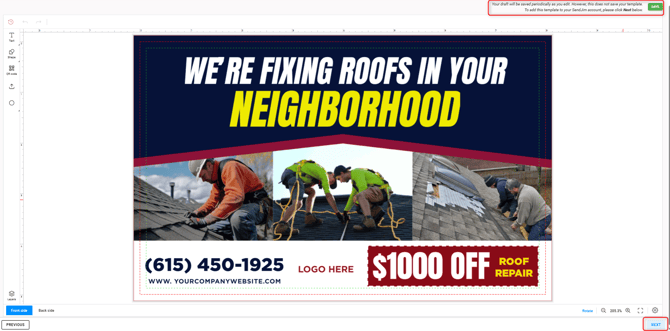
If you happen to leave the editor without saving it into your My Templates, you can recover your draft version.
You will need to go back into the exact Template you had been editing; this may be one currently saved in your My Templates or a new one in the design library.
If there is a draft version available, you will see the following pop up:
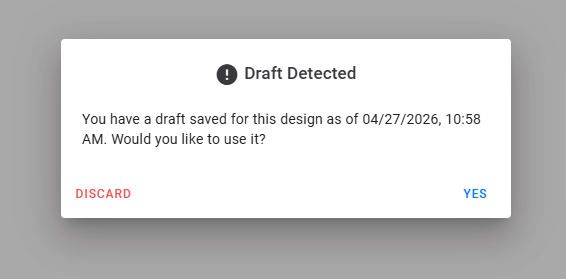
If you choose to select Yes it will bring up the last saved Draft, if you choose Discard the edits made will be lost.