
Step 1: Navigate to your Campaign Playbooks area.

Step 2: Choose to either start with a pre made Campaign or start fresh and create your own. Please reference this Campaign Playbooks article for additional information about building a Campaign.
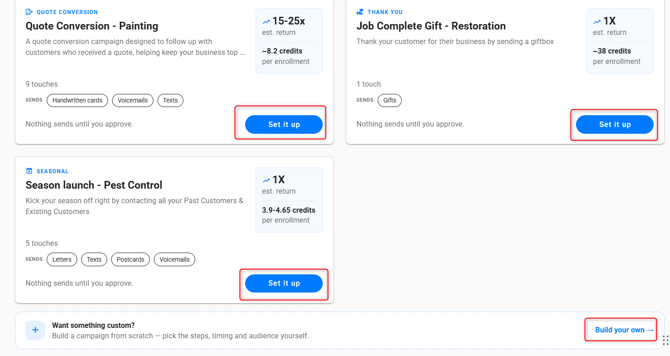
Building Campaign from scratch:
-
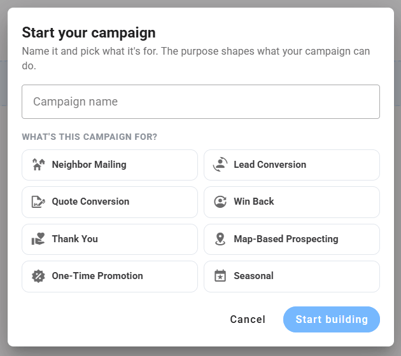
Name your Campaign
- Select what you will use your Campaign for
- Click Start building
-
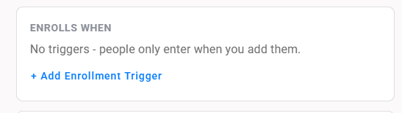
Along the right side, select + Add Enrollment Trigger
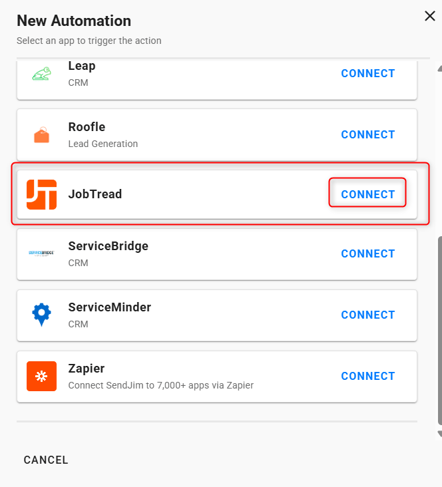
- Once you do, you will see the option to connect JobTread. Click Connect
Step 3: Add a Webhook in JobTread
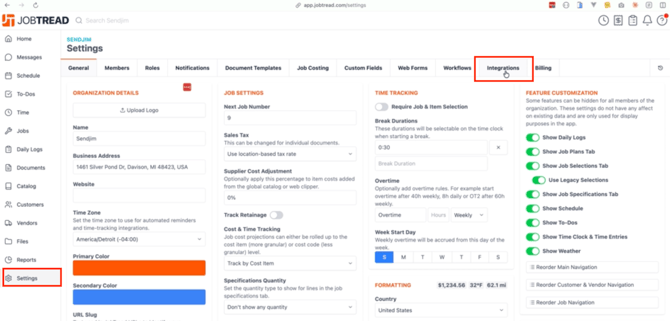
- In JobTread, go to Settings in the sidebar
- Click the Integrations tab at the top
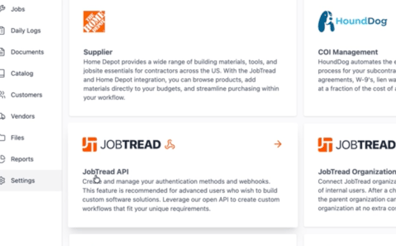
- Scroll down and click JobTread API.
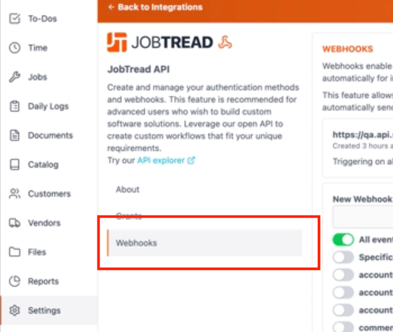
- Navigate to the Webhooks section and click Add Webhook.
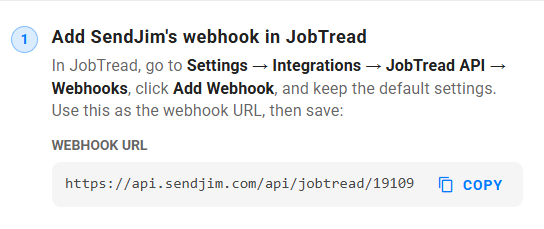
- Copy the Webhook URL from your SendJim integration setup screen, paste it into the URL field in JobTread, leave all defaults as-is, scroll down to the bottom of the page, and click "Create Webhook."
Step 4: Create a Grant (API Token) in JobTread
- Still in JobTread settings, click the Grants tab.
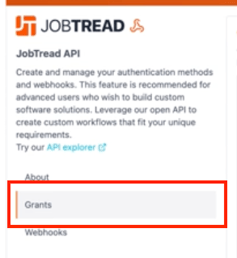
- Click Create Grant, enter a name for it like "SendJim Integration", and click Create.
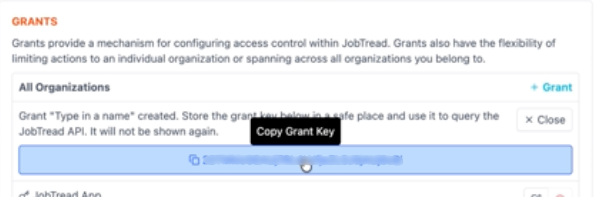
- Copy the token that appears and paste it into the Grant Token field back in your SendJim integration settings.
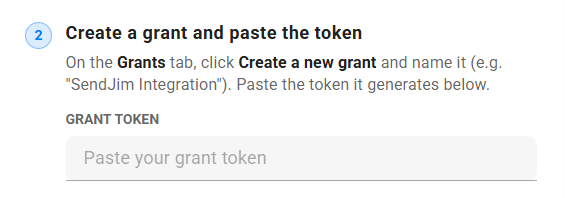
Step 5: Set the job status stage field
- This tells SendJim which custom field in JobTread holds your job's status and stage values.
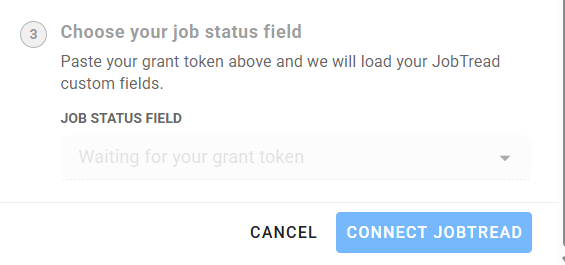
- In most cases this is auto-populated. If it is incorrect, update it to match the custom field name used in your JobTread settings and click "Save".
Step 6: Set your Auto-Replenish and Max Spending Limits (Mandatory)
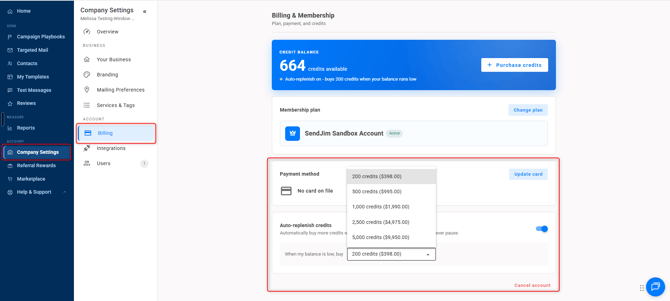
- This is the last and most important step. Navigate to your Company Settings along the left then select the Billing tab. Once in the Billing tab you'll want to turn on your Auto Replenish. There's a toggle button to turn it on easily.
- After that you'll want to go into your Integrations tab and set your Max Monthly Spending.
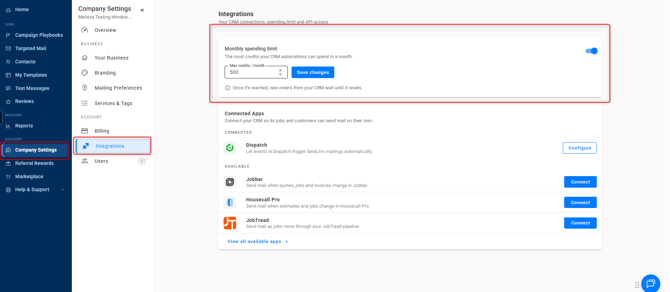
- These numbers are what SendJim will use to give your CRM a budget to spend every month. Once your CRM has reached your Max Monthly Spending limit inside of SendJim for that calendar month, SendJim will send you an email and stop any additional mailings from being triggered until the next calendar month. Or, you can choose to come in and increase your max spend to allow automation to continue.
Part 2: Adding JobTread Triggers to a Campaign Playbook Automation
Step 1: Select JobTread
- Select your Enrollment Trigger from the Drop-down
- Customer Created - Fires when a new customer record is added.
- Job Updated - Fires when a job moves to a specific pipeline stage.
- You'll be asked to select the JobTread "Pipeline Stage" you want to trigger the automation
- Select your "Job Value"
- Select your "Recipient"
- Customer: Enrolls your client into the campaign
- Neighbor: Enrolls your client's neighbors into the campaign
- You'll be prompted to type in how many neighbors you want to mail to. 5 is the most common.
- Select your "Max Send Frequency"
- Select your Template or Multi-Touch campaign
Available trigger events
-
Job Created — Fires when any new job is added in JobTread.
-
Customer Created — Fires when a new customer record is added.
-
Job Stage Changed — Fires when a job moves to a specific pipeline stage.
-
Last Job Completed — Fires when a contact's final active job is marked complete.
For the Job Stage Changed trigger, you will be prompted to choose which stage should fire the trigger. For example, selecting Approved will enroll a contact only when a job reaches that stage.
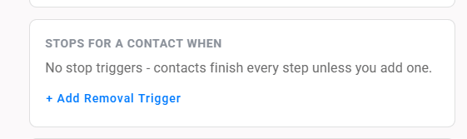
Step 2: Choose Removal Trigger (Removal Triggers are not required but they do allow you to unenroll a contact from a Campaign if a certain criteria is met).
- Along the right side, click + Add Removal Trigger
Step 3: Choose your Templates and Timing
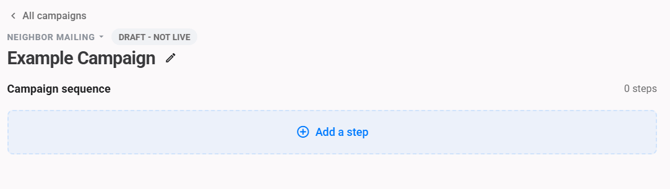
- Along the left side, click + Add Step
-
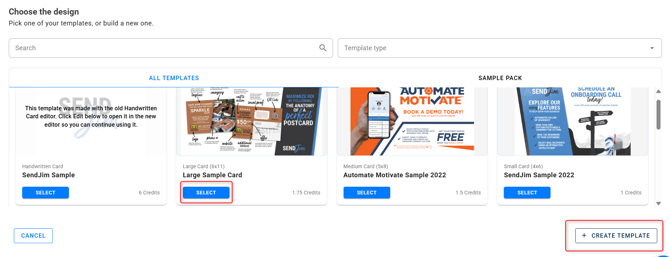
Select a Template you've already created or click Create Template in the lower right corner
-
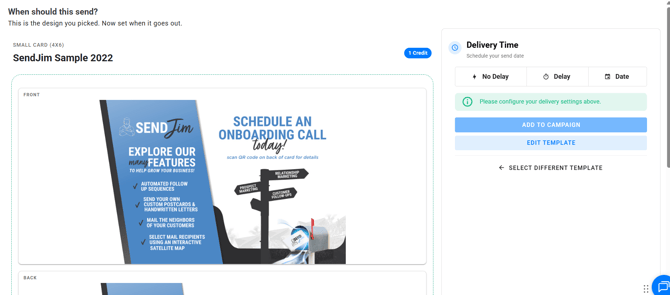
You can review your Template and make any edits needed prior to saving.
- You will also be able to add a delay if needed
-
Click Add to Campaign once your timing is set
Step 3: Save Campaign
- If you plan on sending a multi-step Campaign, select the additional Templates, being sure to adjust the timing.
- Click Save Campaign
**Timing between steps is always based off the previous step**
Step 4: Neighbor Mailing Settings
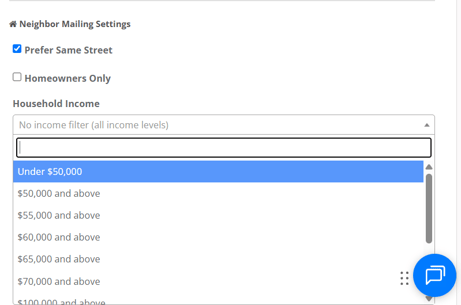
- This is an optional step. You have the ability to add filters if the Trigger you set up is to send to the Neighbors. In your Company Settings are Neighbor Mailing Settings.
-
Prefer Same Street- This filter will try to only mail to neighbors on the same street as the address that triggered it. However, if there are not enough neighbors on the same road, the system will spread out to other streets close by to fulfil the full number of neighbors requested.
-
Homeowner Only- This filter will ensure the Neighbors receiving an item are only Homeowners
-
Household Income- You can ensure any neighbors receiving the mailings meet specific income levels.