
Connecting Leap to SendJim:
Step 1: Navigate to your Campaign Playbooks area.

Step 2: Choose to either start with a pre made Campaign or start fresh and create your own. Please reference this Campaign Playbooks article for additional information about building a Campaign.
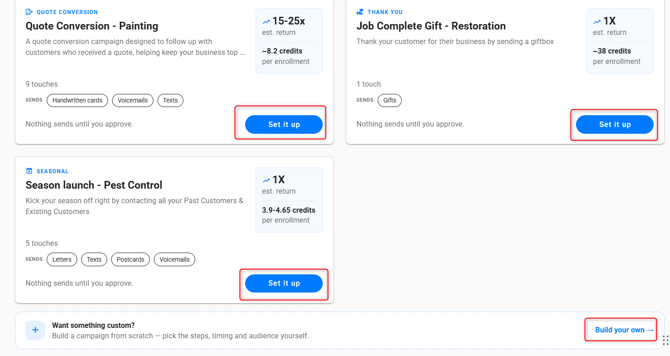
Building Campaign from scratch:
-
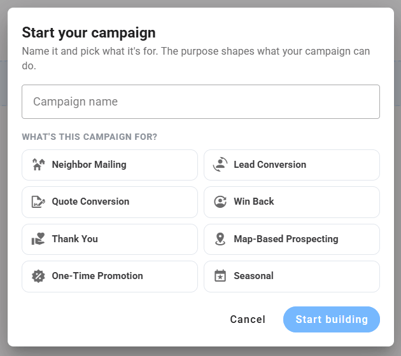
Name your Campaign
- Select what you will use your Campaign for
- Click Start building
-
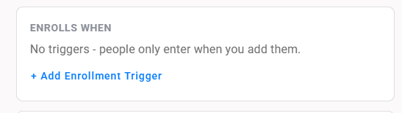
Along the right side, select + Add Enrollment Trigger
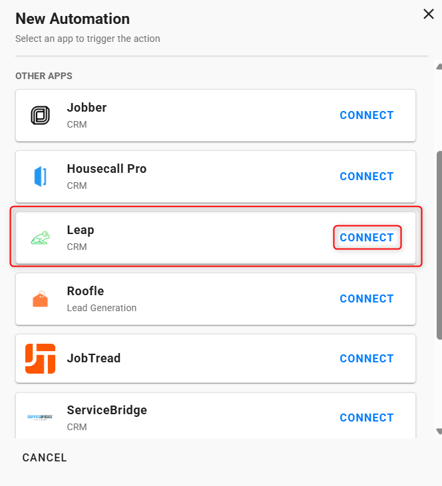
- Once you do, you will see the option to connect Leap. Click Connect
Step 3: Generating your API Token. (Note: As of now only admin users are able to generate the access tokens. So if you don't have an admin account please contact your admin.)
-
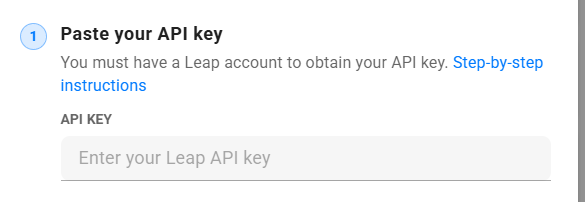
Once you click the Leap icon, you will be prompted to enter an API key.
-
From here, open a new browser tab (Do not close your SendJim window, open a new tab).
-
Log into Leap Application. Leap
-
Once logged in, navigate to the top right corner and click the icon with your initials and click the settings option.
-
Select Developers along the left side.
-
Click "GENERATE TOKEN" in the top right corner.
-
Give the Token a name. Then generate Token and copy to clipboard.
- Navigate back to your open SendJim tab (Do not close your Leap tab).
-
Paste the API Token into the field labeled "Enter your API Key here".
Step 4: Enable Webhooks.
-
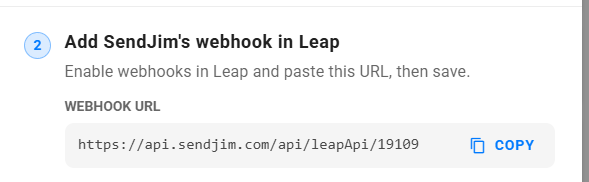
Click the "Copy" button under where it says "Enter Webhook Signing Secret".
-
Navigate back to your open Leap tab.
-
Click Webhooks along the left side.
-
Click "ADD WEBHOOKS URL" in the top right corner.
-
Paste the URL from your SendJim page, then click Save.
- Navigate back to your SendJim tab, click Connect in the bottom right corner.
Step 5: Choose Enrollment Trigger
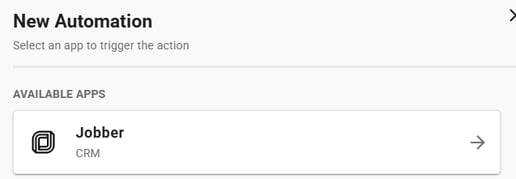
- Select Jobber
- Select your Trigger
- Options available: Customer Created, Last Job Completed, or Job Stage Moved
- For Job Stage Movedm you will then need to select the Job Stage
- Options available: Customer Created, Last Job Completed, or Job Stage Moved
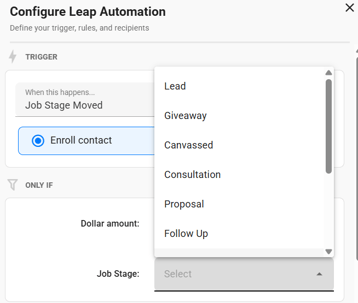
- Once you have your Trigger chosen you can choose to set a Dollar Amount.
-
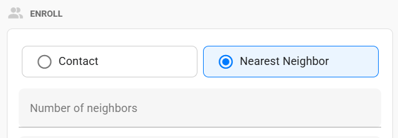
You must then decide who the recipient will be, either the customer or their neighbors. If you choose for it to be sent to their neighbors, you must then select how many neighbors.
-
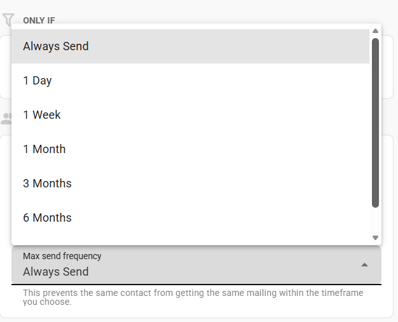
The next step is to choose your Max Send Frequency Per Address. This setting will limit how many times the integration will trigger the same Campaign off the same address. For example, if you have an automation set-up to send a 3-card Campaign to the neighbors after a job is completed, you only want that Campaign to trigger once every 3 months if you service that client multiple times per month. This would prevent the neighbors of your client from receiving multiple of the same mailing.
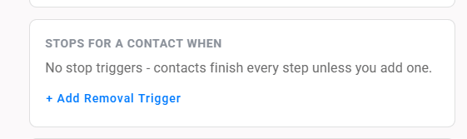
Step 6: Choose Removal Trigger (Removal Triggers are not required but they do allow you to unenroll a contact from a Campaign if a certain criteria is met).
- Along the right side, click + Add Removal Trigger
Step 7: Choose your Templates and Timing
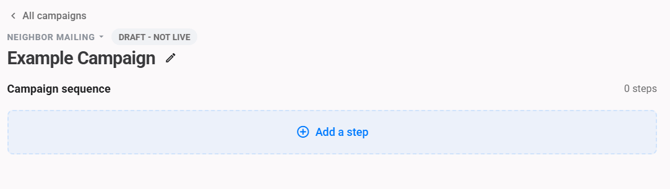
- Along the left side, click + Add Step
-
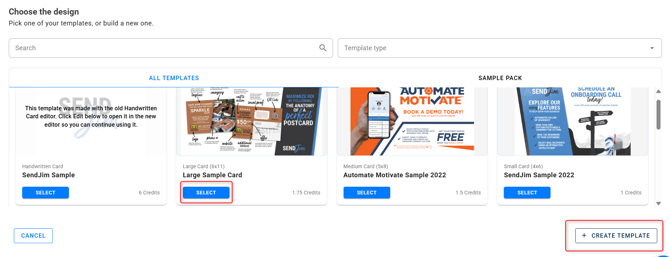
Select a Template you've already created or click Create Template in the lower right corner
-
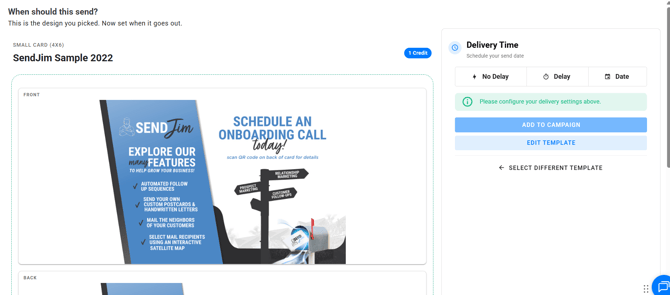
You can review your Template and make any edits needed prior to saving.
- You will also be able to add a delay if needed
-
Click Add to Campaign once your timing is set
Step 8: Save Campaign
- If you plan on sending a multi-step Campaign, select the additional Templates, being sure to adjust the timing.
- Click Save Campaign
**Timing between steps is always based off the previous step**
Step 9: Neighbor Mailing Settings
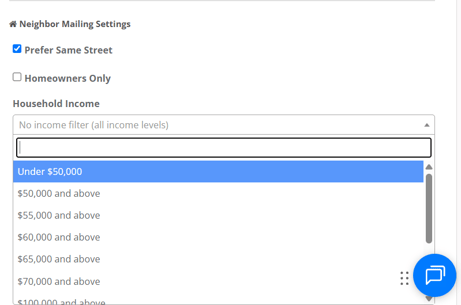
- This is an optional step. You have the ability to add filters if the Trigger you set up is to send to the Neighbors. In your Company Settings are Neighbor Mailing Settings.
-
Prefer Same Street- This filter will try to only mail to neighbors on the same street as the address that triggered it. However, if there are not enough neighbors on the same road, the system will spread out to other streets close by to fulfil the full number of neighbors requested.
-
Homeowner Only- This filter will ensure the Neighbors receiving an item are only Homeowners
-
Household Income- You can ensure any neighbors receiving the mailings meet specific income levels.
Step 10: Set CRM Settings
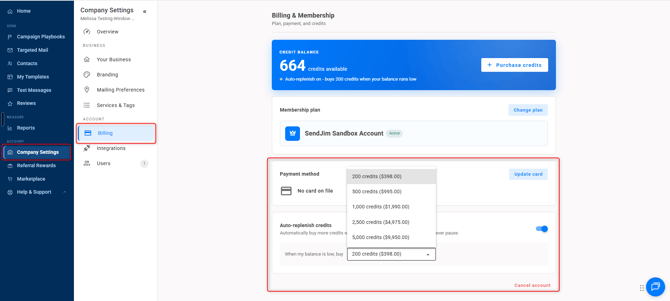
- This is the last and most important step. Navigate to your Company Settings along the left then select the Billing tab. Once in the Billing tab you'll want to turn on your Auto Replenish. There's a toggle button to turn it on easily.
- After that you'll want to go into your Integrations tab and set your Max Monthly Spending.
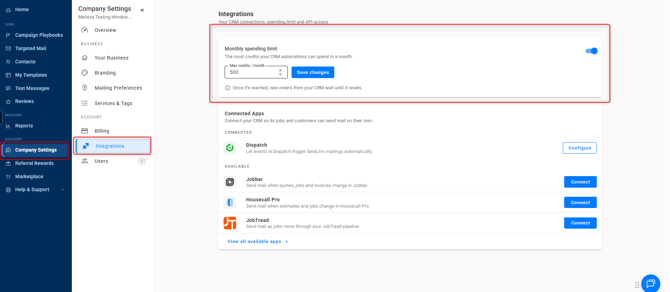
- These numbers are what SendJim will use to give your CRM a budget to spend every month. Once your CRM has reached your Max Monthly Spending limit inside of SendJim for that calendar month, SendJim will send you an email and stop any additional mailings from being triggered until the next calendar month. Or, you can choose to come in and increase your max spend to allow automation to continue.