
This integration is created through Zapier, so make sure to set up a Zapier account before continuing.
Zapier Pricing (You can use the Free Zapier level to integrate Precise Petcare CRM & SendJim)
Step 1: Connect Precise Petcare CRM to Zapier
-
Please use this invite link from Precise Petcare to add it to your available apps in Zapier: https://zapier.com/developer/public-invite/208497/6b280b7a6a972af2d18b9f1c13b8e52b/
Step 2: Create a new Zap inside Zapier
-
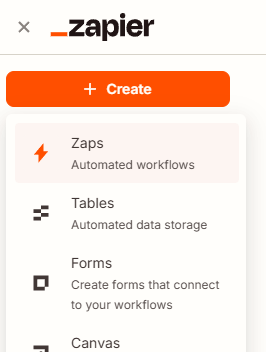
At the top of your Zapier account page, you'll see an orange "+ Create" button on the upper left and a blue "+ Create" button in the upper right. Click one of those to create a new Zap.
-
Select "Zap" from the dropdown choices
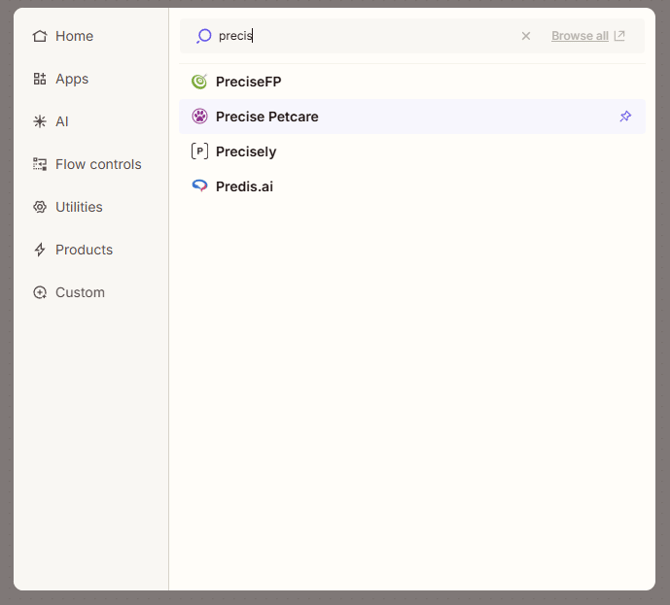
Step 3: Click in the box labeled "Trigger" and search for Precise Petcare
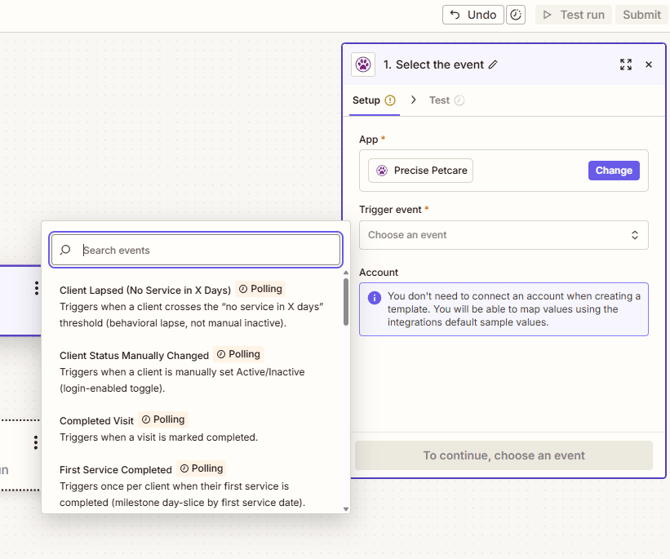
Step 4: Click "Trigger Event" and choose your event from the pop-up
-
Click "Sign-In" Under "Account" to open a Precise Petcare pop-up to enter your username and password into
Step 6: Type in your System URL for Precise Petcare
-
This is Full yourdomain.petssl.com URL (without https://)
Step 7: Click "Test trigger" to test the connection
Step 8: Click in the box labeled "Action" and search for SendJim
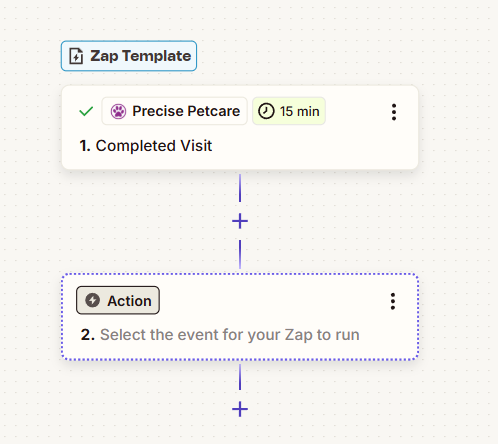

Step 9: Select your "Action Event."
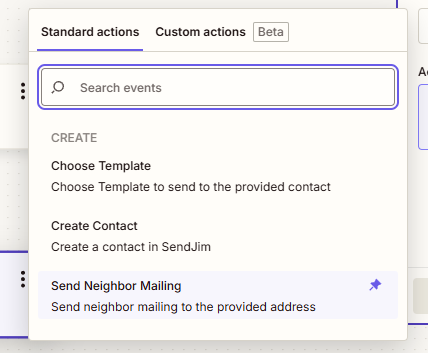
This is the action you want SendJim to take when the Precise Trigger event happens
-
Choose Template
-
-
This will add your client into SendJim and send them the selected mailer from your SendJim account
-
-
Create a Contact
-
This will add your contact into SendJim without sending a mailing
-
-
Send Neighbor Mailing
-
This will add your client into SendJim if it doesn't already exist, and send a mailing to the selected number of neighbors you select
-
- Click "Sign-In" Under "Account" to open a SendJim pop-up to enter your username and password into
Step 11: Map the fields to SendJim
-
Required fields have an "*," but feel free to fill in as many fields as you would like by clicking in the text box, typing in "/", and selecting the matching field from Precise Petcare
-
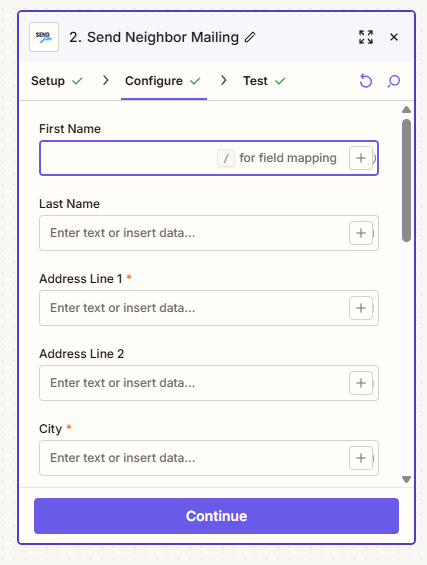
Step 12: Click "Test Step" to send the information to your SendJim account to test the integration
-
If you are testing the "Send Neighbor Mailing" or "Send QuickSend" action and do not want this mailing to be sent to your client or their neighbors, log into your SendJim account, navigate to your reports section on the left menu, and click "Cancel" on the test mailings.
Step 13: Publish your Zap
-
Once you're satisfied with how your automation is set up, you'll click "Publish" to set your automation live.
-
Once the Zap is "Published" anytime the "Trigger" happens inside Precise Petcare, Zapier will tell SendJim to perform the "Action" you set.
CRM Settings in SendJim:
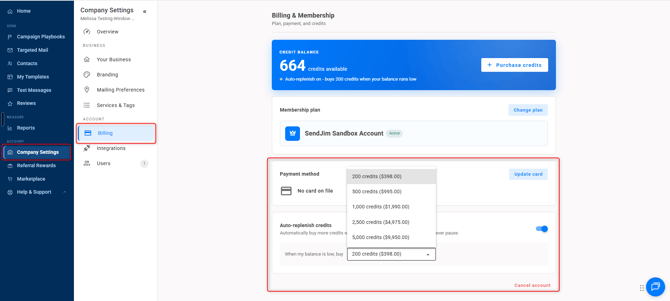
- This is the last and most important step. Navigate to your Company Settings along the left then select the Billing tab. Once in the Billing tab you'll want to turn on your Auto Replenish. There's a toggle button to turn it on easily.
- After that you'll want to go into your Integrations tab and set your Max Monthly Spending.
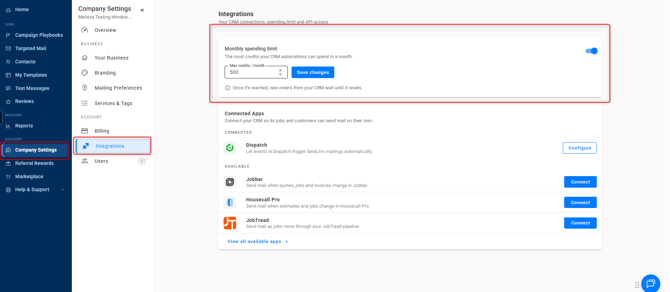
- These numbers are what SendJim will use to give your CRM a budget to spend every month. Once your CRM has reached your Max Monthly Spending limit inside of SendJim for that calendar month, SendJim will send you an email and stop any additional mailings from being triggered until the next calendar month. Or, you can choose to come in and increase your max spend to allow automation to continue.
Questions? Open a Chat to Speak with a Member of Our Team.