
SendJim Reviews makes it easy to collect and showcase customer feedback through automated review request campaigns. Once a customer leaves a review, you can leverage that positive feedback by featuring it on direct mail postcards sent to surrounding neighbors, helping build trust, boost credibility, and attract new customers.
Review the steps below to see how to set up SendJim Reviews in your account!
Settings up SendJim Reviews
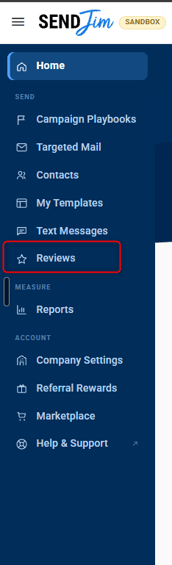
Step 1: Navigate to your Reviews tab along the left side
Step 2: Connect your Platforms
-
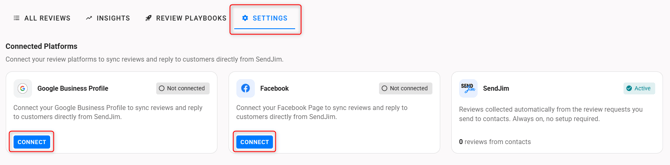
Navigate to the Settings tab
- Connect your Google Business Profile and/or your Facebook Profile
Only 1 Google Profile can be connected at this time
-
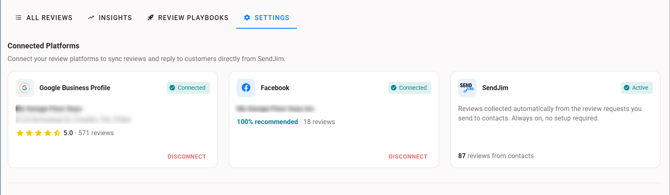
Once you are successfully connected it will look like this:
Step 3: Set up Embedded Widgets and Domains
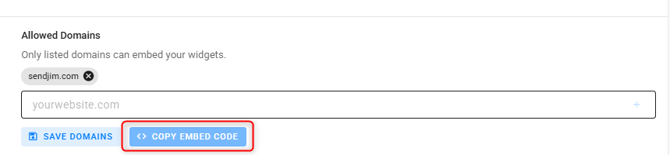
- Under Allowed Domains, type your website's domain. Press Enter or the plus button on the right, then click Save Domains.
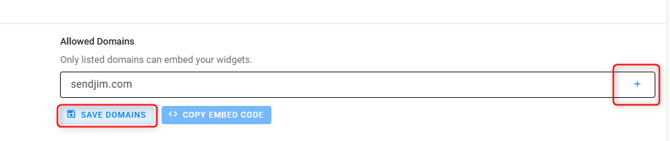
Use the base domain only, such as sendjim.com, not www.sendjim.com. A full URL is trimmed down automatically.
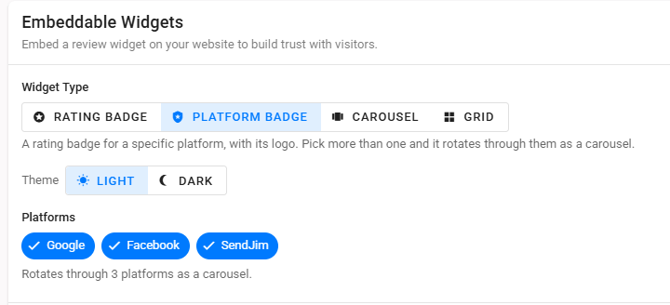
- Pick the Widget you want (Rating Badge, Platform Badge, Carousel or Grid)
- Adjust the options shown for that widget. Theme on all four, review count and sources on Carousel and Grid, platforms on Platform Badge. The preview updates as you go.
- Click Copy Embed Code
- Paste the code into your website where you want the widget to appear. Any page builder that accepts HTML or embed block works.
If you change options later, copy and paste the code again. The snippet is a snapshot of the settings at the moment you copied it.
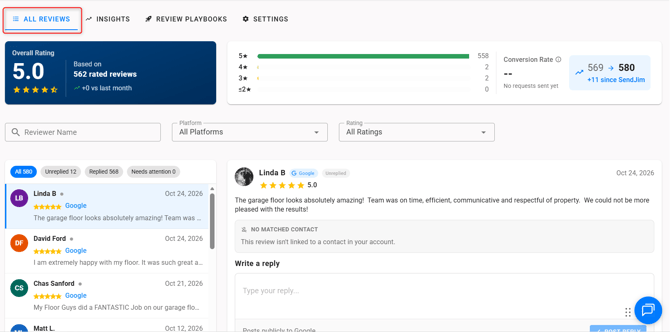
- Once these steps are complete, reviews will begin to populate in your SendJim account. You can view all reviews under your All Reviews tab and even respond to them
-
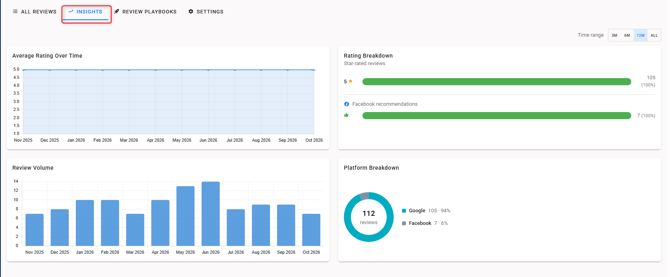
You can also review additional information under your Insights tab
Setting up Reviews Campaign Playbooks
Step 1: Navigate to your Review Playbooks tab under your Reviews
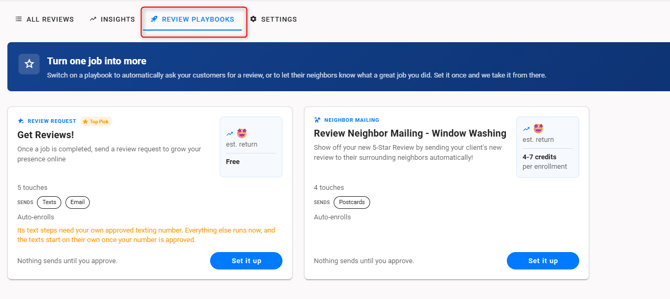
Step 2: Setting up Get Reviews Playbook (request Reviews from completed jobs)
-
Click Set it Up in the bottom right corner
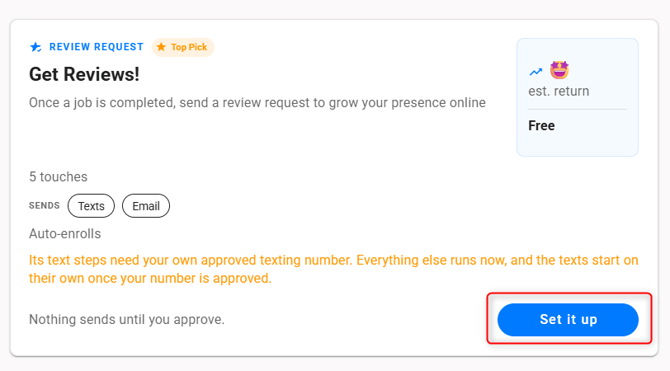
This Campaign includes 1 Text Message and 4 Emails. If you do not have Texting set up in your SendJim account, that step will be skipped and the "Get Reviews Email 01" will become the first step in the Campaign
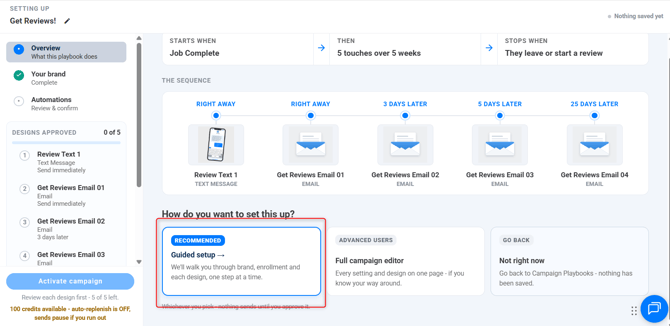
Step 3: Overview
-
Select the Guided setup
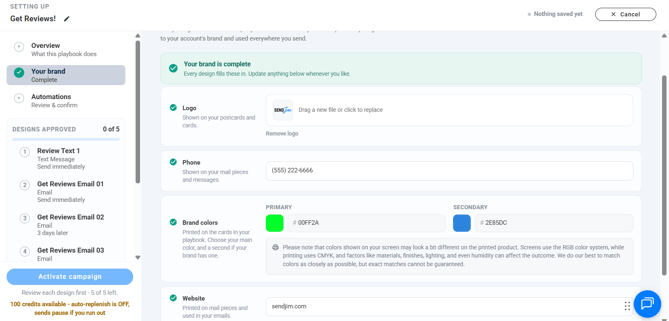
Step 4 : Your Branding
- Review your Brand Information, make any updates needed (logo, website, phone number, colors)
Step 5: Automations
- If you are connected with a CRM we have a native integration with, you can choose your Enrollment Trigger here. If you are going to send these manually or through a CRM we have a direct integration with, you can leave the Enrollment trigger blank.
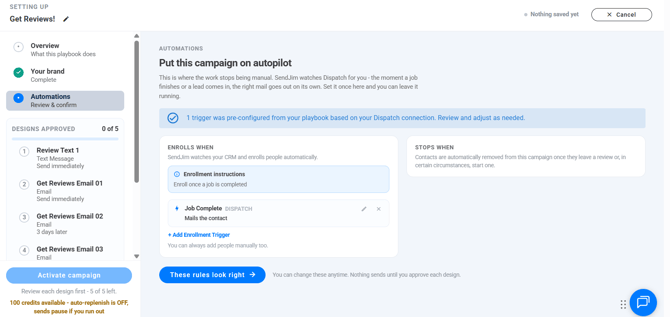
- Click "These rules look right"
Step 6: Review your Campaign steps
- Review Text 1 is first. You can leave the message as is or customize it by clicking "Edit Message". Or, click "Approve & continue"
The default message will auto-populate your companies name and your specific review link
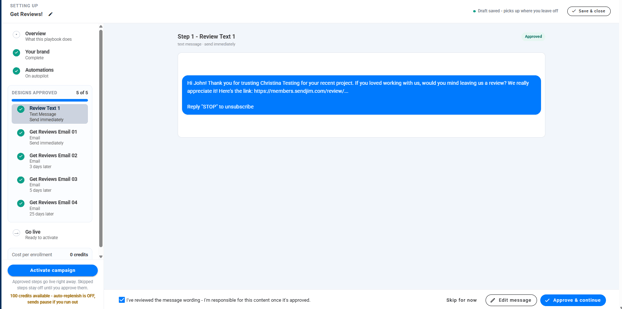
- Review Emails 1-4 timing:
- Email 1- Immediately
- Email 2- 3 days after step 1
- Email 3- 5 days after step 2
- Email 4- 25 days after step 3
These templates are not editable. Your company information will auto-populate based off the information in your Branding tab
Step 7: Activate Campaign
- Review each email step then click "Activate Campaign"
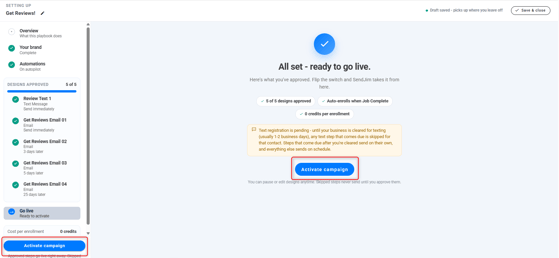
- If you've set this campaign up with automation, these review requests will start to trigger the first time your enrollment trigger is met. Otherwise, you can manually add a contact to this campaign inside your SendJim account
Contacts are automatically removed from this campaign once they leave a review
Setting up Reviews Neighbor Mailing (Automatically add your customers review to a postcard and send it to their neighbors!)
Step 1: Navigate to your Review Playbooks tab under your Reviews
Step 2: Setting up Review Neighbor Mailing
-
Click Set it Up in the bottom right corner
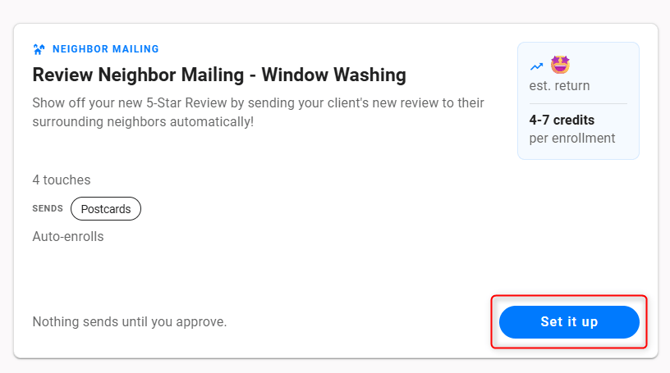
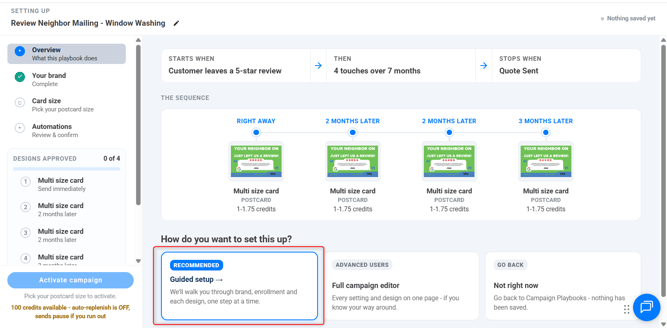
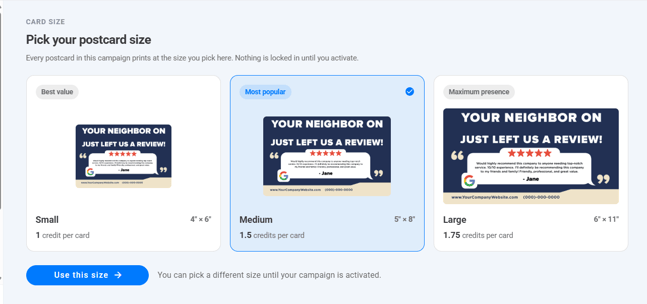
This campaign includes 4 postcards (you can choose between Small (1 credit/card), Medium (1.5 credits/card), or Large 1.75 credits/card)).
Step 3: Overview
- Select the Guided setup
Step 4: Card Size
- Select your card size
Step 5: Automations
- Confirm your Enrollment Trigger (Customer leaves a 5-star review)
- Set up your Unenrollment Trigger (if using one of our native integrations)
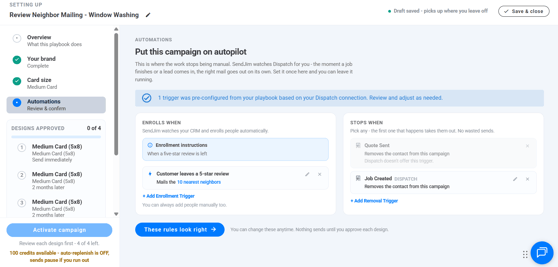
- In this example, I am enrolling the neighbors of my customer after the customer has left me a 5-star review. If one of those neighbors then creates a Job with me, they will be removed from the campaign and stop receiving postcards
- You can also edit the number of neighbors who will receive the campaign
Step 6: Review
-
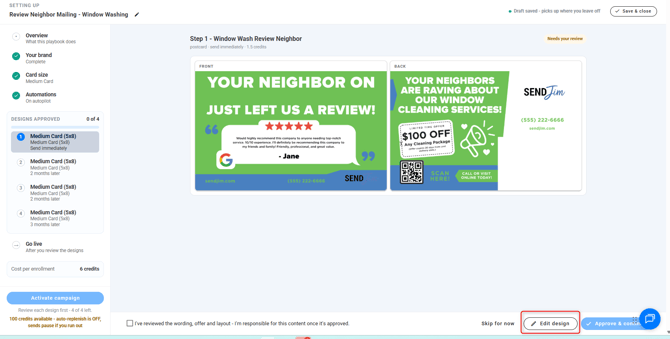
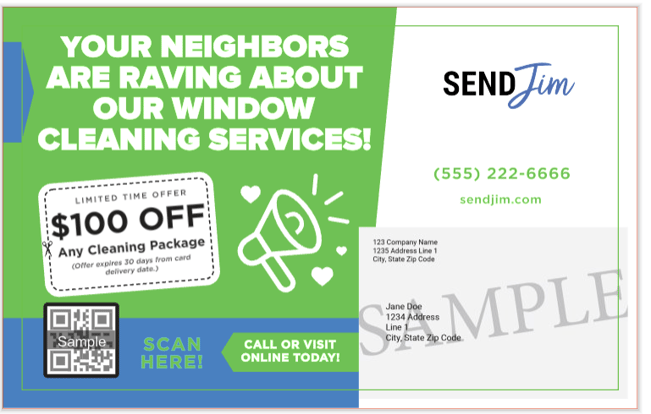
Review your postcard design. Click "Edit design" if you need to update something like the offer.
Be sure to click edit to update your QR code! The QR code does NOT automatically populate with your company’s website
-
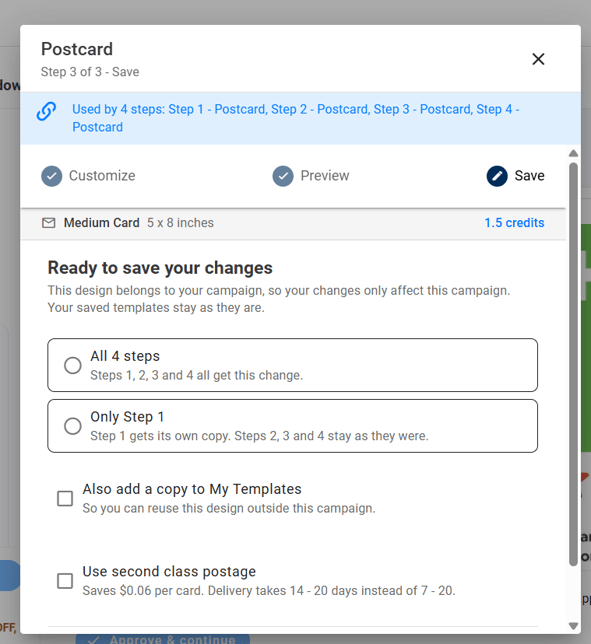
Once you've made an edit and go to save, you will see a message asking if you would like the changes applied to just that 1 card, or to all 4. We suggest making changes to all 4 at once
Step 7: Activate Campaign
- Once all 4 designs have been reviewed and approved, click Activate Campaign
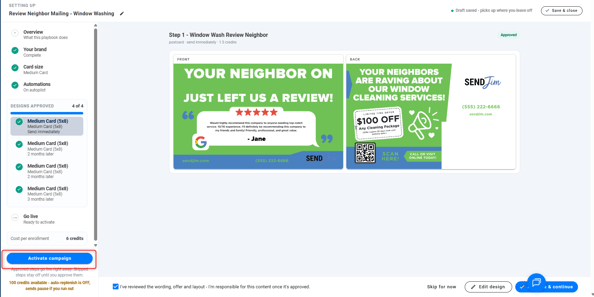
- Your Neighbor Mailing Review Campaign is now set up and will automatically update with the review and first name of the customer who left the review
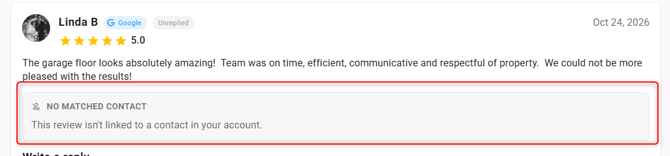
- If SendJim cannot link a review to a contact in your SendJim account, a Neighbor Mailing Campaign will not be triggered. Instead, you will see a message like this:
If you have any questions, please reach out to our team using the chat feature on our website or by emailing support@sendjim.com