
Click Here to Schedule an Integration Appointment with Our Team
Step 1: Turn on your CRM settings:
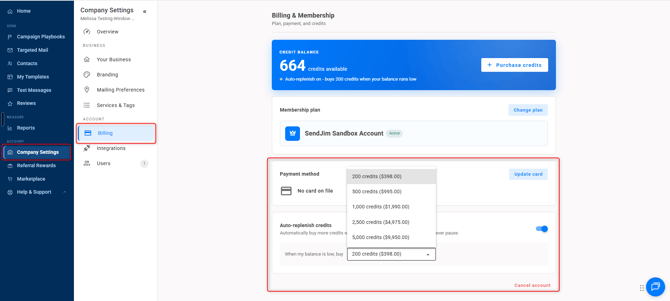
- This is the last and most important step. Navigate to your Company Settings along the left then select the Billing tab. Once in the Billing tab you'll want to turn on your Auto Replenish. There's a toggle button to turn it on easily.
- After that you'll want to go into your Integrations tab and set your Max Monthly Spending.
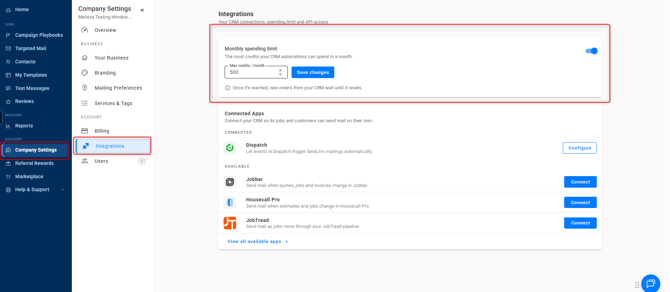
- These numbers are what SendJim will use to give your CRM a budget to spend every month. Once your CRM has reached your Max Monthly Spending limit inside of SendJim for that calendar month, SendJim will send you an email and stop any additional mailings from being triggered until the next calendar month. Or, you can choose to come in and increase your max spend to allow automation to continue.
Step 2: Log into Responsibid and click the "Connections" link
Step 3: Connect SendJim to Responsibid by clicking the proper link and following the instructions
After you are connected you will go into Responsibids "Follow-up Builder" and set up your automatic mailings.
For each "status" that Responsibid allows you to have for your clients you can trigger one of two things:
1: A Direct Customer Mailing
OR
2: A Neighbor Mailing
Using Responsibid's Follow Up Builder you can choose what mailings to have triggered when a client "status" is changed (open, pending, closed, scheduled, etc)
P.S. Make sure you have some mailing Templates already set up and ready to go in your SendJim account first :)