
Watch the video or follow the written instructions below to learn how to connect Service Autopilot and SendJim.
Please note, that you must have a Pro Plus level account with Service Autopilot to enable the SendJim automation.
How to Connect Service Autopilot and SendJim
-
On the Service Autopilot Home Page, click the gear icon at the top of the page to open your Company Settings
-
On the Settings Page, Click "Integrations"
-
On the Integrations page, scroll down to SendJim and click "Login to SendJim."
-
Login to SendJim and click "Allow Access."
Finishing Set-Up Inside SendJim
- This is the last and most important step. Navigate to your Company Settings along the left then select the Billing tab. Once in the Billing tab you'll want to turn on your Auto Replenish. There's a toggle button to turn it on easily.
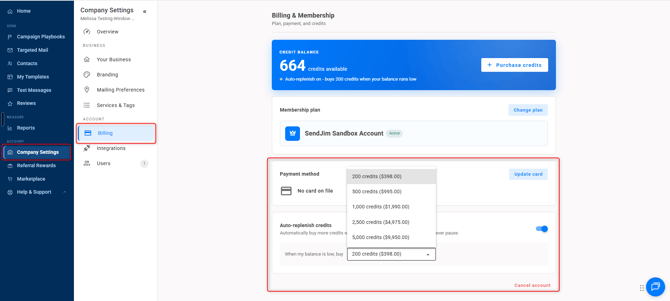
- After that you'll want to go into your Integrations tab and set your Max Monthly Spending.
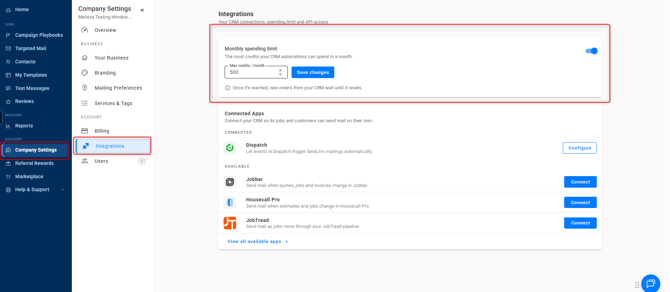
- These numbers are what SendJim will use to give your CRM a budget to spend every month. Once your CRM has reached your Max Monthly Spending limit inside of SendJim for that calendar month, SendJim will send you an email and stop any additional mailings from being triggered until the next calendar month. Or, you can choose to come in and increase your max spend to allow automation to continue.
Now it's time to set up your Service Autopilot Automation.
To create a new Automation with SendJim included, proceed to Step 1. If you want to add SendJim to an existing Service Autopilot Automation, proceed to Step 6.
-
Click "Automations" from the "Marketing" dropdown at the top of the page.
-
Click "Add Automation" on the right side of the page, or under the "Actions" dropdown.
-
Name your New Automation, add a Description, and click "Save."
-
Click "Add a Sequence" under your Automation Name.
-
Name your Sequence, Add Rules, and click "Save Sequence."
-
On the Automation Page, click and drag "Marketing" under the sequence you're wanting to add a SendJim action to.
- Click on the "Marketing" section to open up the Marketing Event window. Name your event, select your Template from the dropdown, and choose who you would like to receive the mailing. Your client, or their neighbors.
-
Please note, that the Safari Browser may not properly display the SendJim Templates in this dropdown.
-
Once you've edited your Marketing Event, click "Save Event."
-
Make sure to toggle your sequence and marketing step "on" and save your automation to activate your SendJim automation.
-
Your automation is all set. Any time that Service Autopilot Automation is triggered in your account, the mailing you selected will be sent to your chosen recipients. These mailings can be found in your SendJim Reports tab.
Have any questions or need help with turning on the integration? Use the chat to contact our support team.