
Want to drop a voicemail straight to your customer's phone? Voicemail Bomb is the way!
Use it to follow up, for appointment reminders, or even just to say thank you!
Step 1: Navigate to your My Templates then select Add Template.
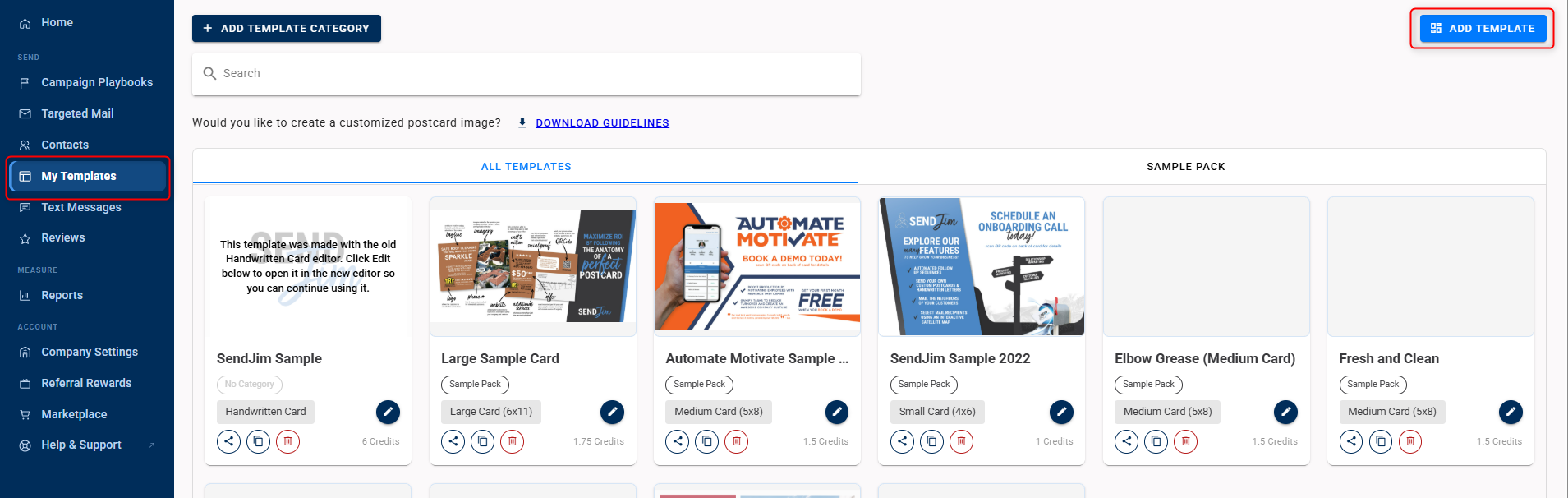
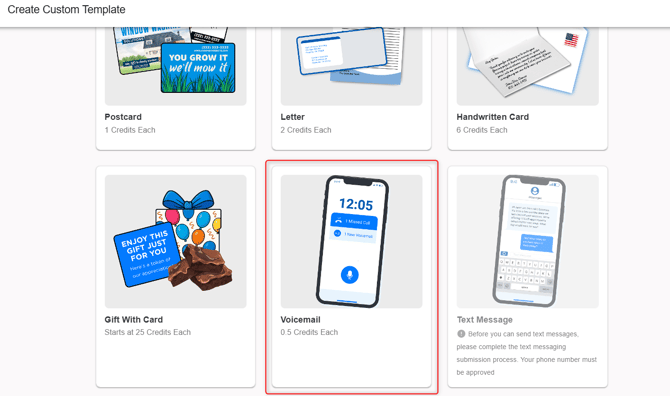
Step 2: Select Voicemail.
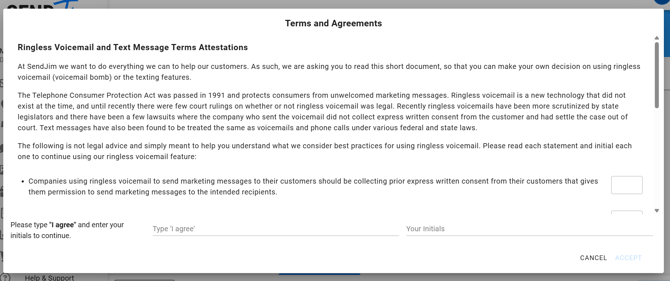
Step 3: Agree to Terms and Conditions.
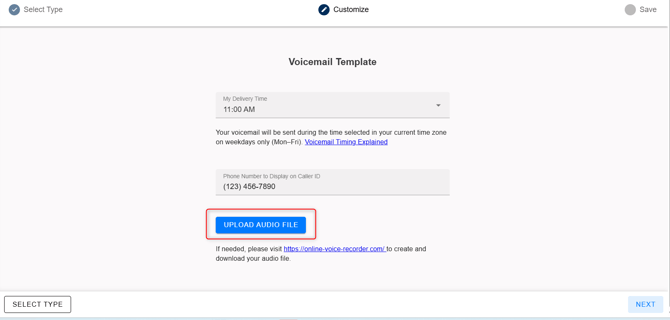
Step 4: Upload Recording.
- If you already have a recording created, select the Upload Audio File button.
- If you do not have a recording already, you can select the link at the bottom to record a message.
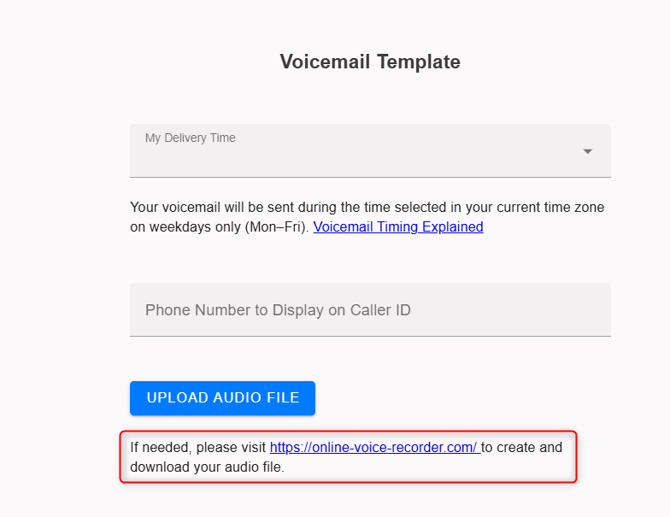
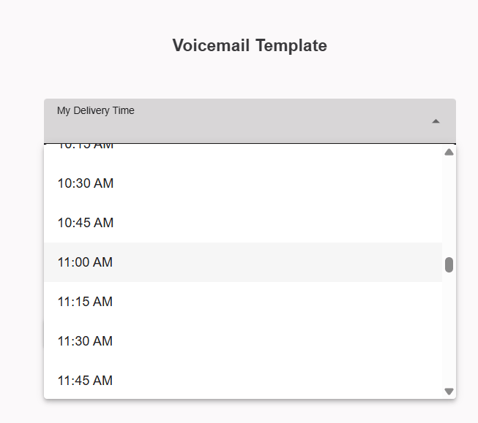
- Select a Delivery Time. (Review the Timing Here)
- Enter the Phone Number you want displayed on the Caller ID.
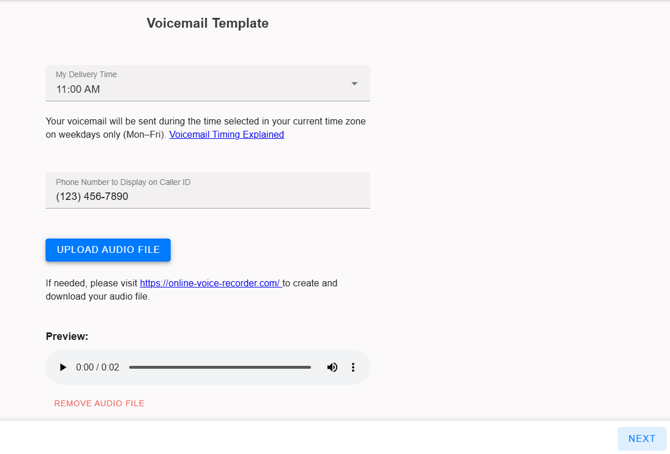
- Select "Next".
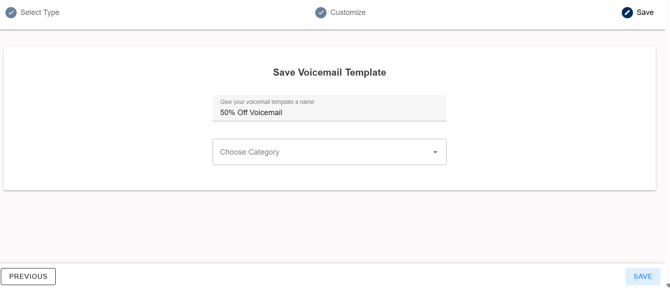
Step 5: Save.
- Give your Voicemail a Name and select the Category you want to save it to if applicable. Click "Save".
Voicemail Best Practices:
-
Do not use special characters when naming your audio file (%, &, @, etc.)
-
Only send voicemails to individuals who have given you permission to contact them previously like current and past clients.
-
If a client does not wish to receive a voicemail from you moving forward, contact our team to learn how to remove them from future voicemail sends automatically.
-
View the full Voicemail Bomb Terms and Conditions here
Questions? Open a Chat to Connect Directly with Our Team!