
Watch the video or follow the written instructions below:
Connecting SendJim to Zapier
SendJim integrates with Zapier, allowing you to automatically send contacts and trigger mailings based on actions that occur in other software you already use—such as CRMs, forms, booking tools, or spreadsheets.
This article walks through how to connect your SendJim account to Zapier and begin creating automations.
What Is Zapier?
Zapier is an automation platform that connects thousands of apps together. It works by creating Zaps, which consist of:
-
a Trigger (something that happens in another app), and
-
an Action (what you want SendJim to do in response).
By connecting SendJim to Zapier, you can automatically add contacts and trigger SendJim actions without manual work.
Step 1: Create a Zapier account
-
If you don't already have a Zapier account, start with the free option. You can often get away with the free account unless you need to create more complex Zaps. If that's the case or you aren't sure, please reach out to our Support team.
Step 2: Create a Zap
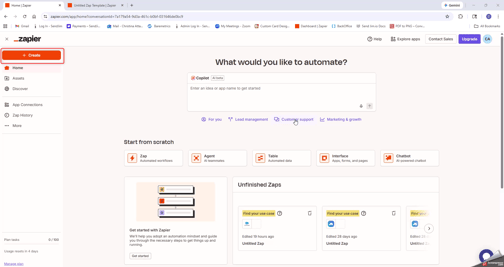
- Once you have created or logged into your account, click the orange "Create" button in the top left corner then select "Zaps".
-
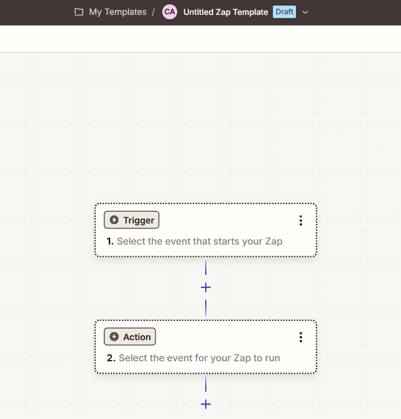
You will then see Step 1: Trigger and Step 2: Action.
-
Select the app that will act as your Trigger (for example, a CRM, form, or spreadsheet).
- Select your Trigger on the right side from the ones available.
-
Each CRM and software platform connected through Zapier offers its own set of available triggers, based on what actions that system supports. Because of this, the trigger options you see may vary depending on the app you choose.
For example, common CRM triggers may include:
-
A new lead or contact is created
-
A deal, job, or opportunity is updated
-
A status changes (such as won, completed, or closed)
-
A form or estimate is submitted
Not all CRMs support the same triggers, so the exact options available will depend on the software you are connecting to SendJim. We recommend reviewing the trigger choices in Zapier and selecting the one that best aligns with the action you want to automate in SendJim.
-
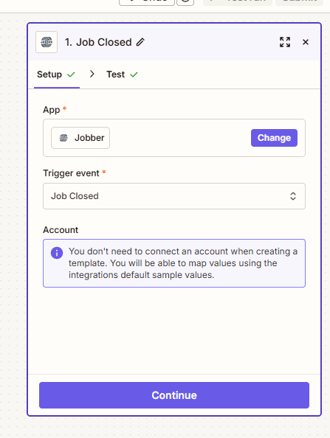
- Once you select your trigger, connect your CRM and click Continue.
-
You will then see a screen that shows all the data bring brought over by the Trigger you selected.
It’s important to review this information to confirm that all required details—especially the mailing address—are included.
If the trigger does not provide a complete address, SendJim will not be able to process mailings correctly. Make sure the trigger you select supplies the full address fields (street, city, state, and ZIP) before continuing to the action step.
If multiple triggers are available, choose the one that provides the most complete and reliable contact data.
Step 3: Action Step
-
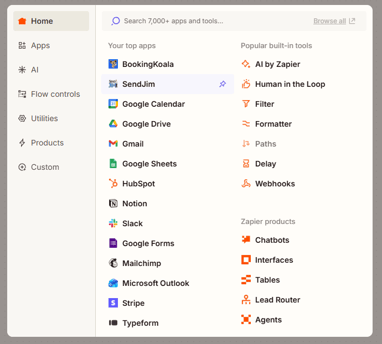
You will then Select SendJim as your Action Step.
-
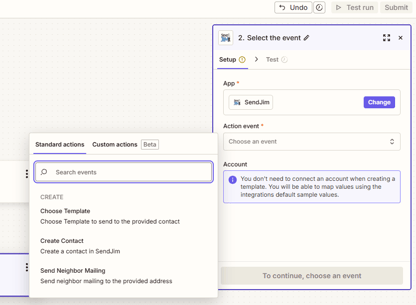
Along the right side you will see the available Action Event options for SendJim:
- Choose Template- You will select this option if you want to mail something directly to a recipient (Thank You cards, Gifts, follow up on open quotes)
- Create Contact- This action creates a new contact in SendJim using the data passed from the trigger app. It’s commonly used to automatically add new leads or customers into SendJim as soon as they are created in another system.
- Send Neighbor Mailing- This action triggers a Neighbor Mailing based on the address provided by the trigger. It’s designed for workflows where you want to automatically send mail to surrounding households when a specific event occurs, such as a job being completed or a new customer being added.
-
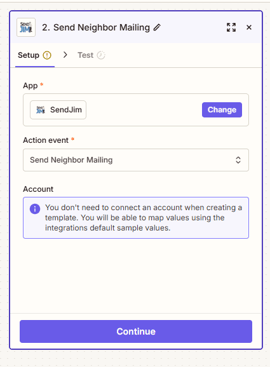
Once you've select your Action Event, connect your SendJim account and click Continue.
Step 4: Map Your Data
-
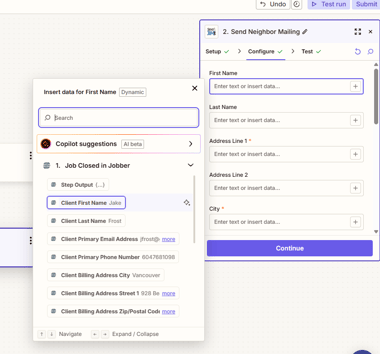
Match fields from your trigger app (such as name, address, email, and phone number) to the appropriate SendJim fields.
- Click the + in each box and then scroll through the available information or use the Search box to map accordingly.
-
The only information required is the address, but we encourage you to fill out all fields available.
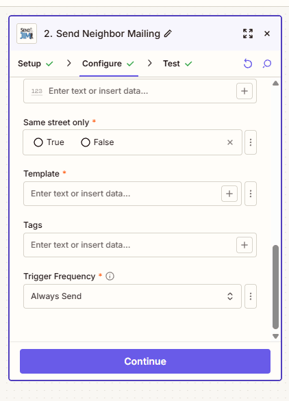
- At the bottom of the Configuration step, you will see a few more settings to choose from:
- Same Street- This setting determines whether Neighbor Mailings are sent only to homes on the same street as the provided address. Enabling this option helps narrow the mailing area and keeps outreach highly localized. This is also a setting in your Company Profile in your SendJim account. Please make sure both are set the same.
- Template- Select the SendJim template you want to use for this automation. This ensures the correct design and messaging are sent every time the Zap runs.
- Tags- Tags allow you to label and organize contacts created or updated through Zapier. Adding tags makes it easier to filter contacts, track where they originated, and segment future mailings.
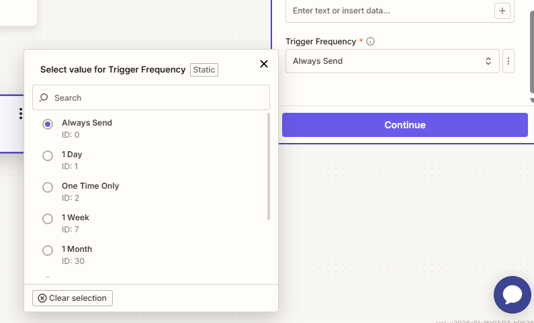
- Trigger Frequency- This allows you to prevent the same recipients from getting the same mailing within the timeframe you choose.
-
Once your configuration it all set up, click Continue.
Step 5: SendJim CRM Settings and Test
-
Before you click Test Step in the Zap, be sure to go into your SendJim account and set up your CRM settings.
-
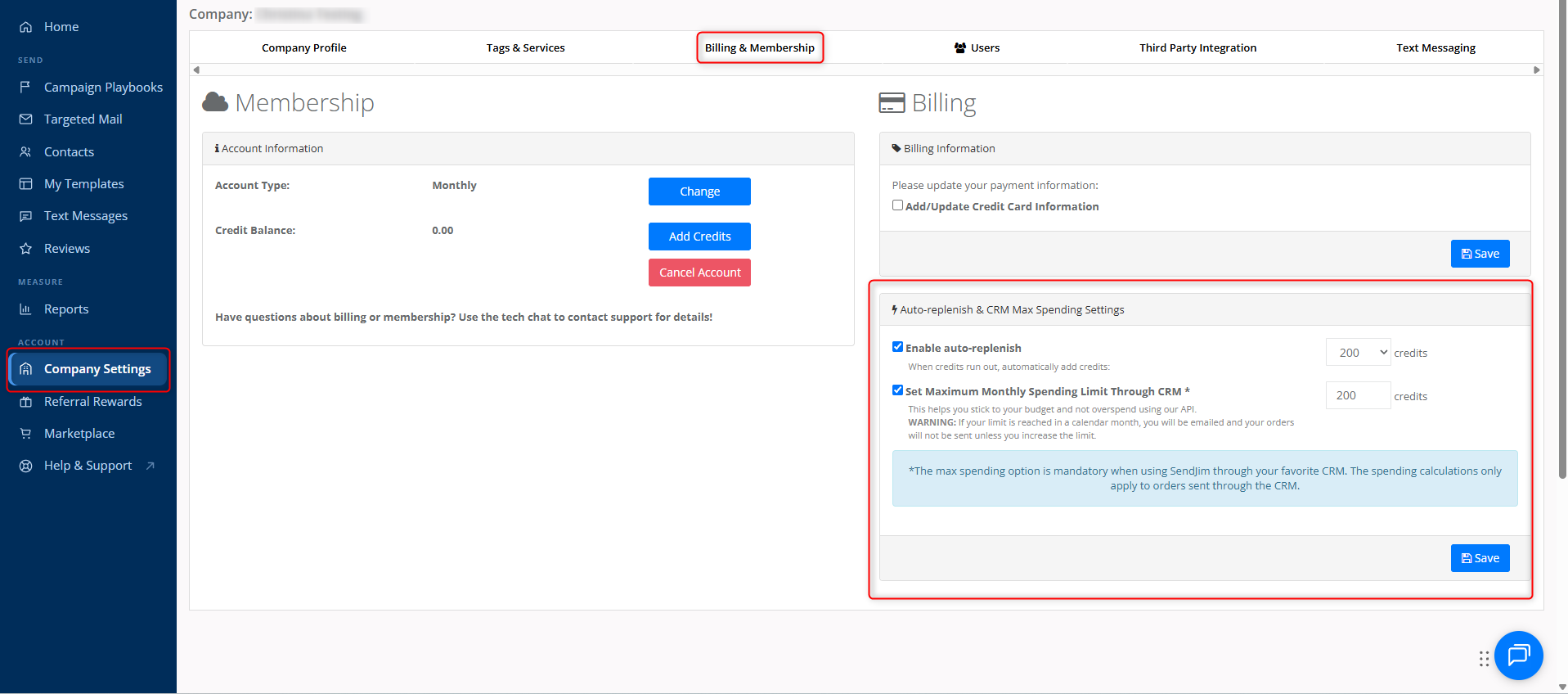
Set your monthly automated budget in your Billing and Membership section. These numbers are what SendJim will use to give Zapier a budget to spend every month. Once these numbers are set, click "Save."
-
Enable Auto-Replenish: This is the number of additional credits that SendJim can purchase on your behalf if you have run out of available credits, but have not reached your monthly spending limit
-
Maximum Monthly Spending Limit: This is the maximum number of credits that Jobber can use to send automated mailings on your behalf during the calendar month.
-
- Click Test Step in the Zap. It should then trigger a mailing to ensure the Zap is working correctly.
- If you do not want that test mailer to go out, please go into your SendJim account then your Reports tab and click the red Cancel button for the mailing.

Name Your Zap
- Once your Zap is built, click at the top middle where it says, "Untitled Zap" and rename it.
- At this point, if no further adjustments are needed you can go ahead and publish the Zap.
Questions? Open a Chat to Speak with a Member of Our Team.
Click Here to Schedule an Integration Appointment with Our Team